How to Save an Email as a .msg or .eml File
Instructions for isolating raw email data across major platforms to safely hand off intact message metadata blocks to our support queues.
Outlook on macOS Environment
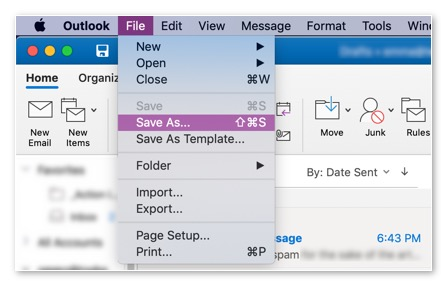
- Highlight the targeted email string execution block you wish to preserve.
- Navigate through top file path options: File → Save As.
- Set structural file layout options precisely to Email Message (Do not use Email Template).
Apple Mac Mail Application
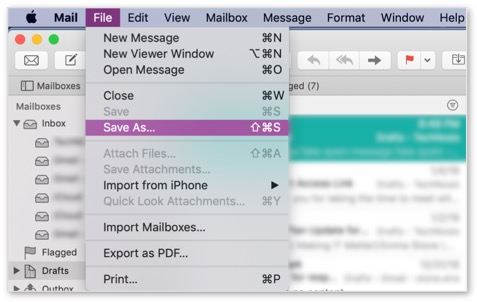
- Isolate and highlight the specific target communication block entry.
- Trigger the standard file dropdown pathway parameters: File → Save As.
- Select local desktop storage targets and modify format configuration selectors to Raw Message Source.
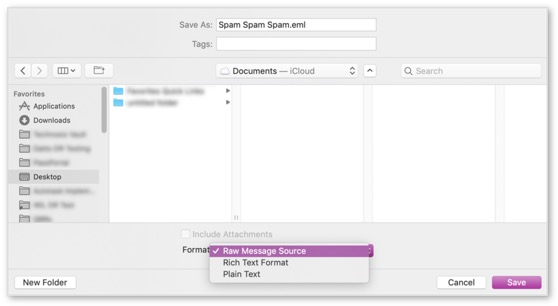
This saves the email as a standalone
.eml file on your computer. Simply send this file to us as an email attachment at support@websitesvictoria.com.au so our team can look into it for you.
Outlook on Windows Architecture
- Highlight the verification payload source message inside your dashboard.
- Navigate via the global program control map path: File → Save As.
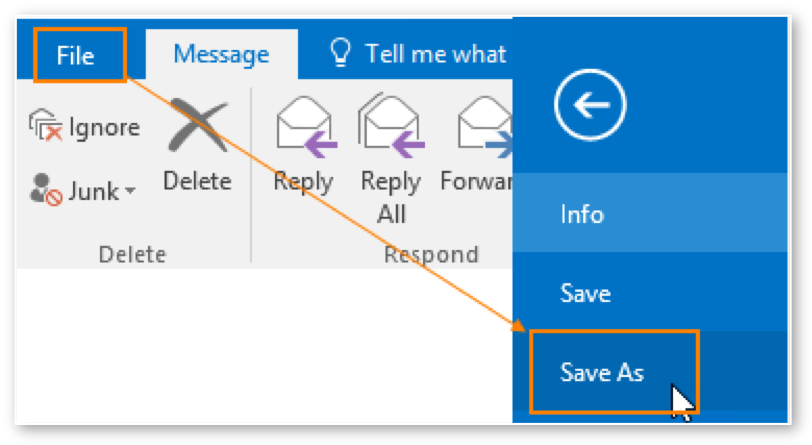
- Assign a target destination folder and explicitly lock format structure options to Outlook Message File.
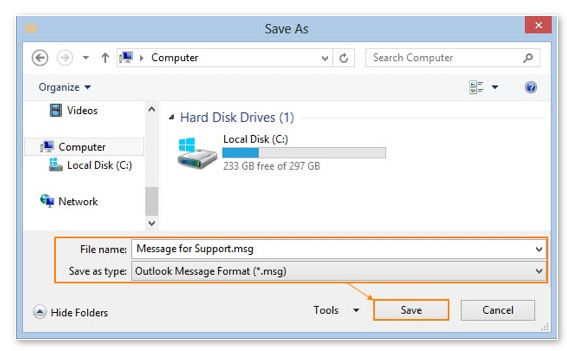
This creates a standalone
.msg file on your computer. Simply email this file as an attachment to our support team at support@websitesvictoria.com.au so we can investigate it for you.
Outlook Web App (OWA Interface Nodes)
- Initialize a clean workspace window frame overlay by triggering the New Email script.
- Directly drag the targeted email context out of your tracking queue array, dropping it cleanly into the text container body of the newly generated composition envelope window.
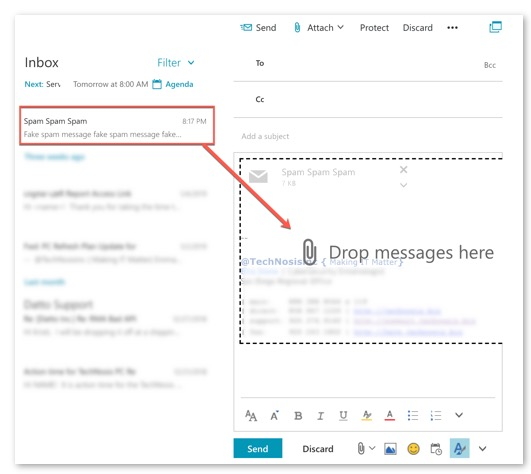
- The target string will package instantly as a standalone
.msgextension object attachment within the message module wrapper, which can be routed straight to support@websitesvictoria.com.au.