How to import email items into Outlook 2016 for Mac
This guide explains step-by-step how to safely import your historic profile database into Outlook 2016 for Mac.
System Prerequisites
- ✓ A Websites Victoria Hosted Exchange email profile.
- ✓ A Mac computer with Microsoft Outlook 2016 installed.
Step-by-Step Configuration
1. Launch Microsoft Outlook
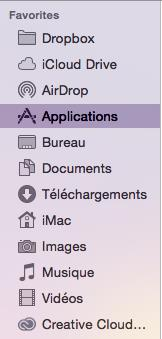
In the Finder, click on Applications, and then double-click on Microsoft Outlook.
2. Authorize Keychain Access Security
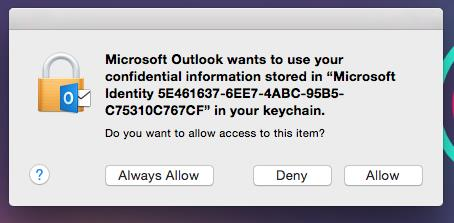
A security pop-up window may ask for your system approval to use verification credentials stored inside your local keychain parameters layer. Click Always Allow.
3. Initialize Welcome Wizard Sequence
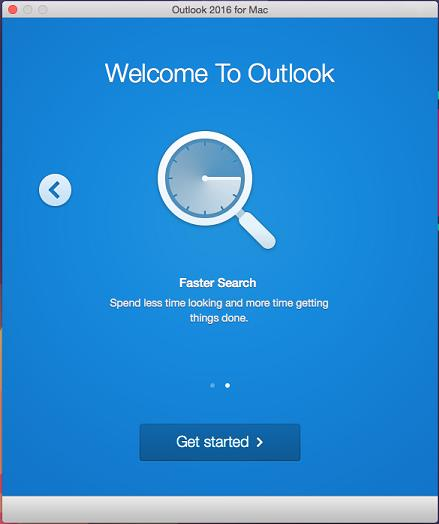
When using Outlook 2016 for Mac for the very first time, click on the right-hand arrow button labeled Next on the Welcome to Outlook interface page view, then click on Get started to provision the layout setup pipeline.
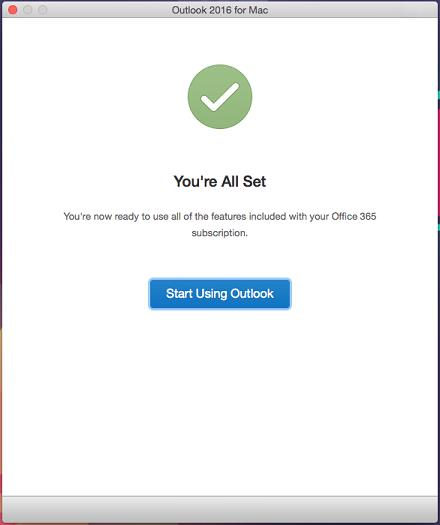
4. Complete Activation Step
Click cleanly on the primary interactive entry asset labeled Start Using Outlook.
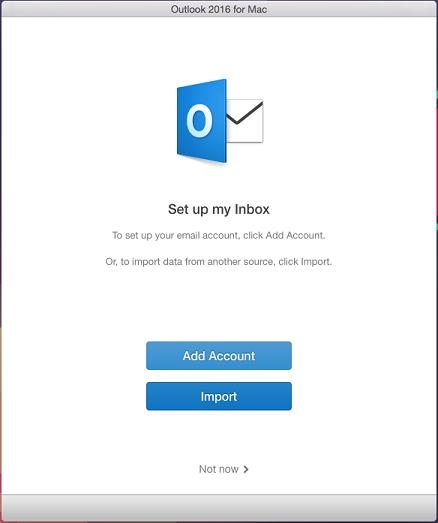
5. Select Import Option Block
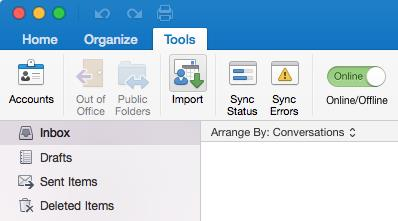
On the foundational workspace environment layout, choose the block action titled Import.
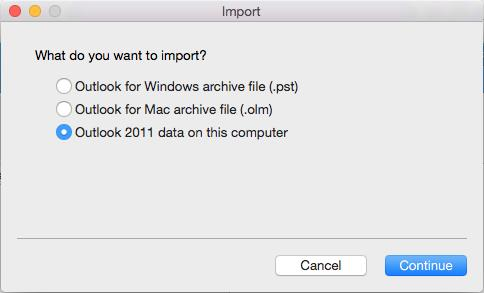
6. Identify Source Target Version
Select the option line marked Outlook 2011 data on this computer and click the primary forward action link labeled Continue.
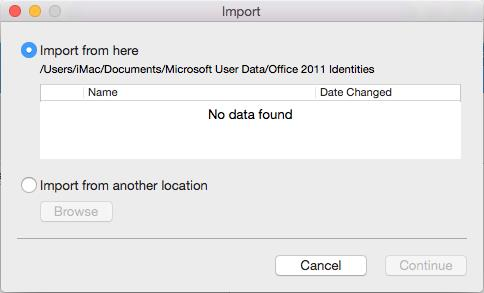
7. Confirm Location Directory Source Paths
By default, the "Import from here" option button setting is checked. This maps directly to the automated Microsoft Outlook 2011 for Mac database identities file directory tree path strings.
Alternative Path Handling:
If you have archived or moved your traditional Outlook 2011 identity records folder to an external volume storage grid, toggle on the "Import from another location" radio element to manually map the directory trees.
8. Execute Local File Extraction
Click the execution trigger labeled Import.

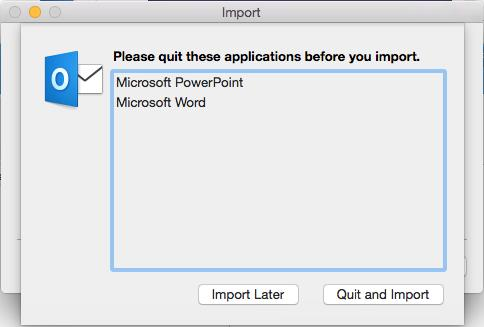
9. Resolve Application Dependency Conflicts
If an application notification warning pop-up element lists active programs locking target data stores, click on Quit and Import to terminate background dependencies cleanly.
10. Database Conversion Complete
The item file conversion process will notify you upon successful completion. Your archived layout metadata maps are now active inside the local mail folder hierarchies.